How to use the Voice Changer
How to use the Voice Changer
Written by Admin
Updated 4 months ago
In this article, to access the AI Voice Changer dashboard
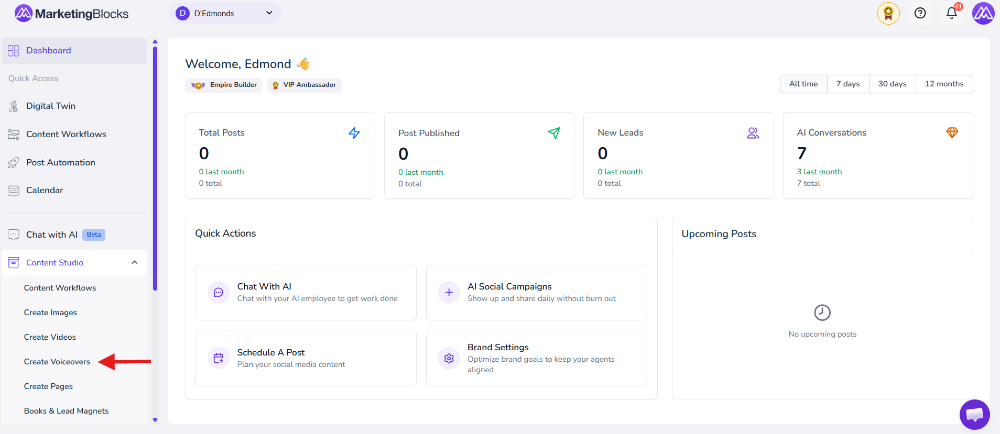
Step 1: From your dashboard, click on the Content Studio inside the drop-down menu, and click on Create Voiceovers.
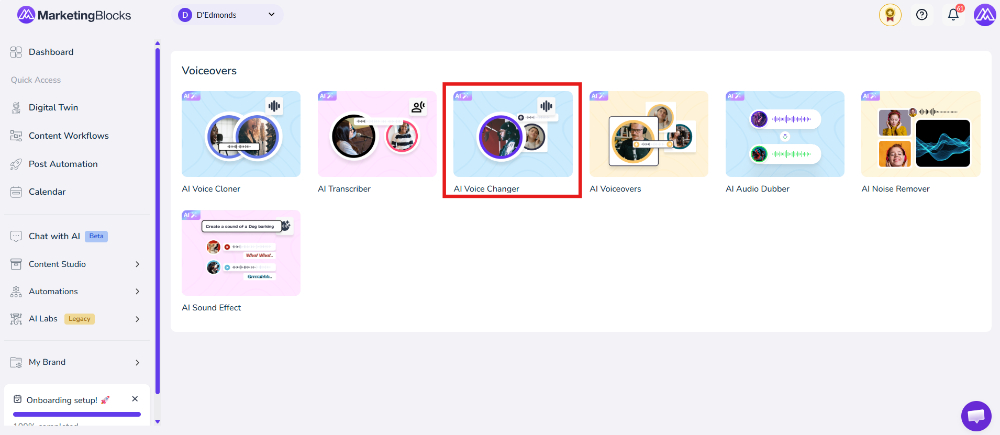
Step 2: Click on the AI Voice Changer
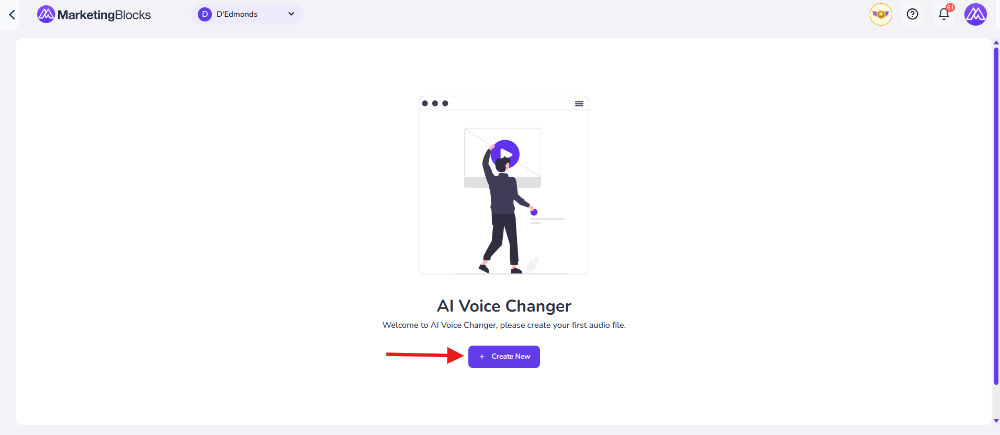
Step 3: Click on Create new
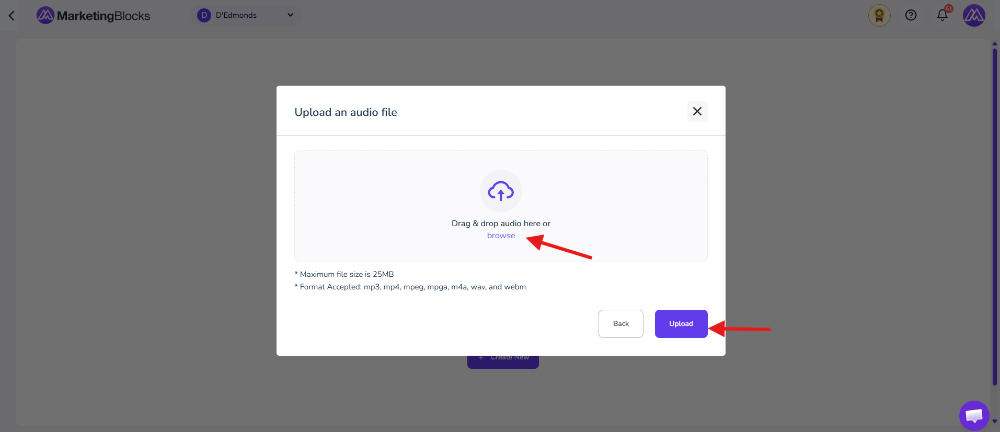
Step 4: Upload your recorded audio
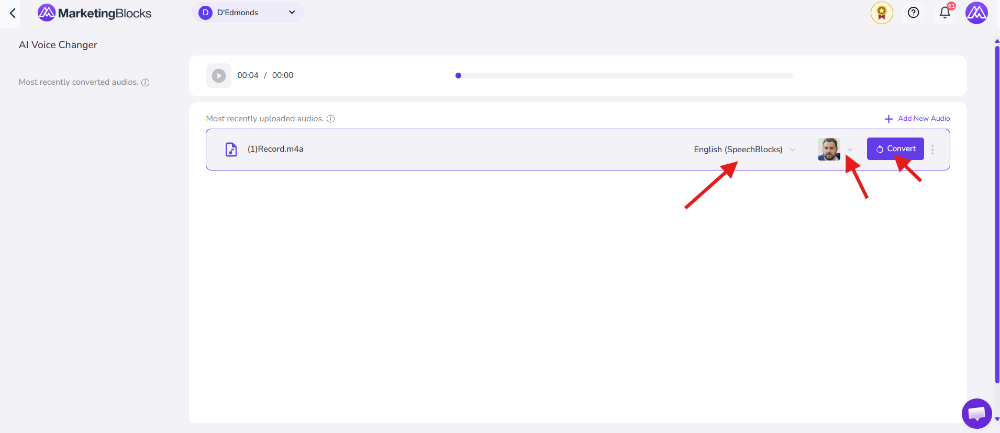
Step 4: Once your audio has been uploaded successfully, you can now customize and convert the voice as shown by the arrows in the screenshot below:
Language Selection Dropdown – Click on the language option (e.g., English (SpeechBlocks)) to choose the language or voice category you want for the audio conversion.
Voice Character/Icon – Click on the voice avatar icon to select the specific AI voice you want to use for the conversion.
Convert Button – After selecting your preferred language and voice, click the Convert button to begin changing the uploaded audio into the selected AI voice.
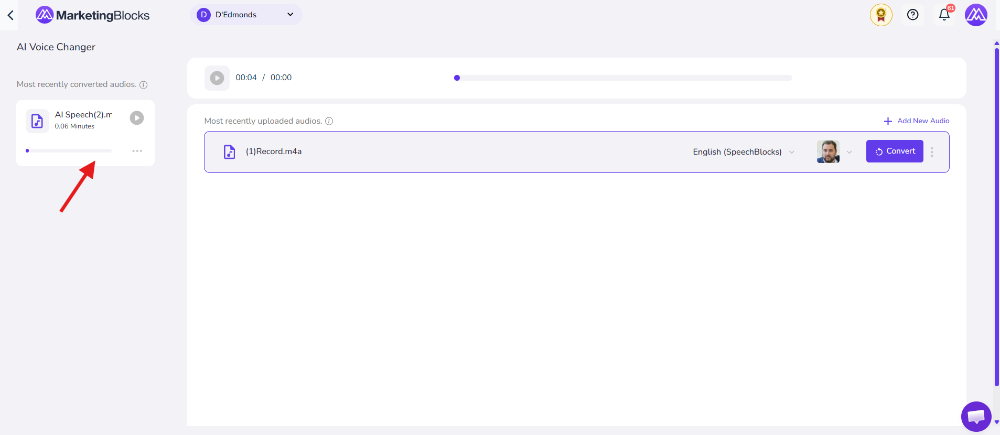
Step 5: Recently Converted Audio Section. The arrow points to the area where your converted audio files appear after the voice conversion process is complete.
From here, you can preview, manage, or access your newly converted audio output.
That’s it!
If you need further assistance, kindly use the chat widget at the bottom-right corner of this page or send an email to our support desk (support@marketingblocks.ai) for prompt assistance.
Thank you!

